 StarQR
How it works
Your rewards, in one star
A quick tour of the StarQR app — from your first scan to your first free coffee.
StarQR
How it works
A quick tour of the StarQR app — from your first scan to your first free coffee.
Step 1
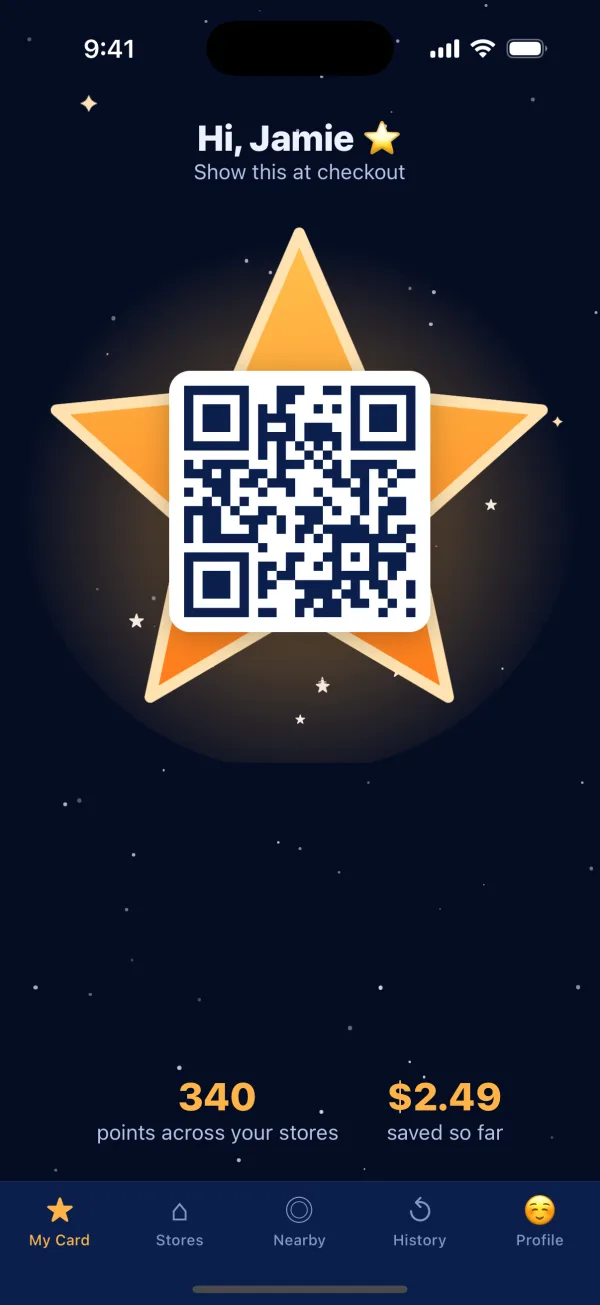
Open the app and your card is the first thing you see: a personal QR code inside a big glowing star. Hand your phone to the cashier and they scan it — that's how your points find you.
Step 2
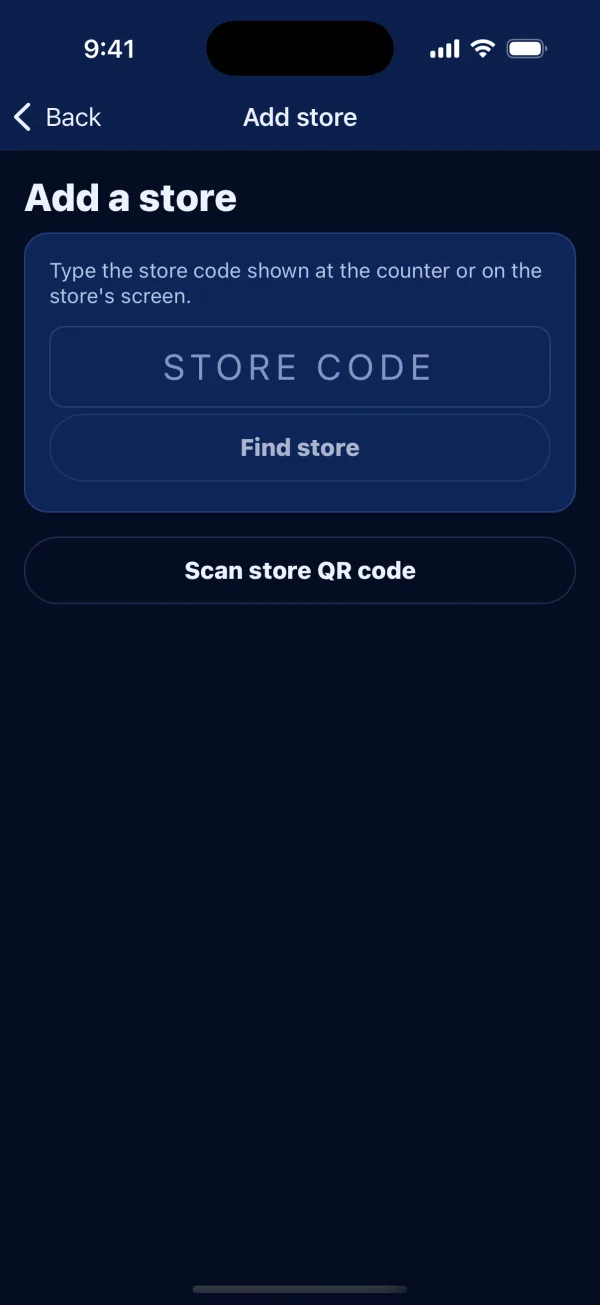
Tap “Add a store” and type the short code shown at the counter, or scan the QR code on the store's display screen. Stores also add themselves the first time you're scanned there.
Step 3
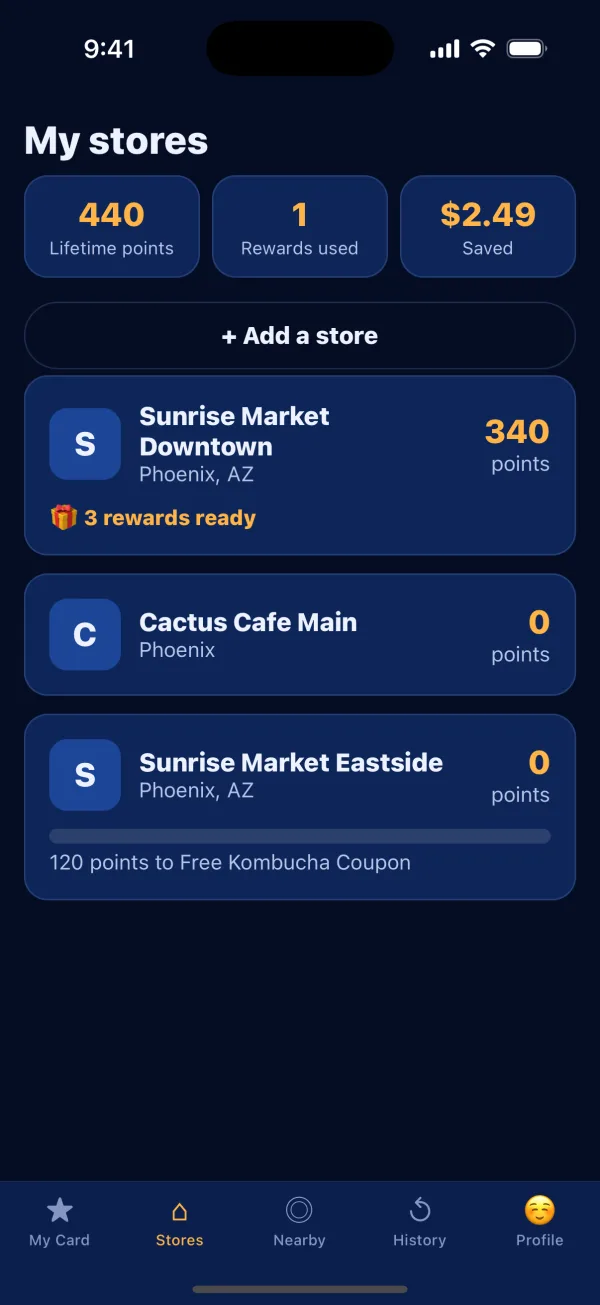
My stores shows your points at each store, how close you are to the next reward, and when something is ready to use. Your lifetime points and total savings are at the top.
Step 4
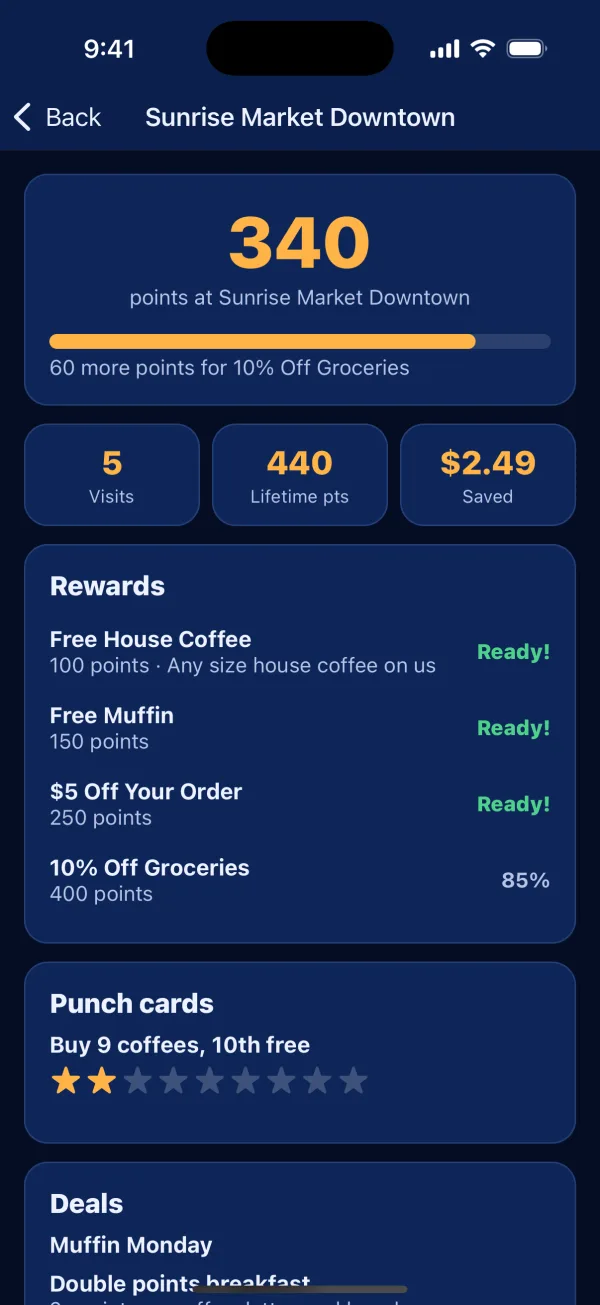
Tap a store to see every reward it offers and what it costs in points, plus punch cards and current deals. When a reward says Ready!, just ask for it at checkout.
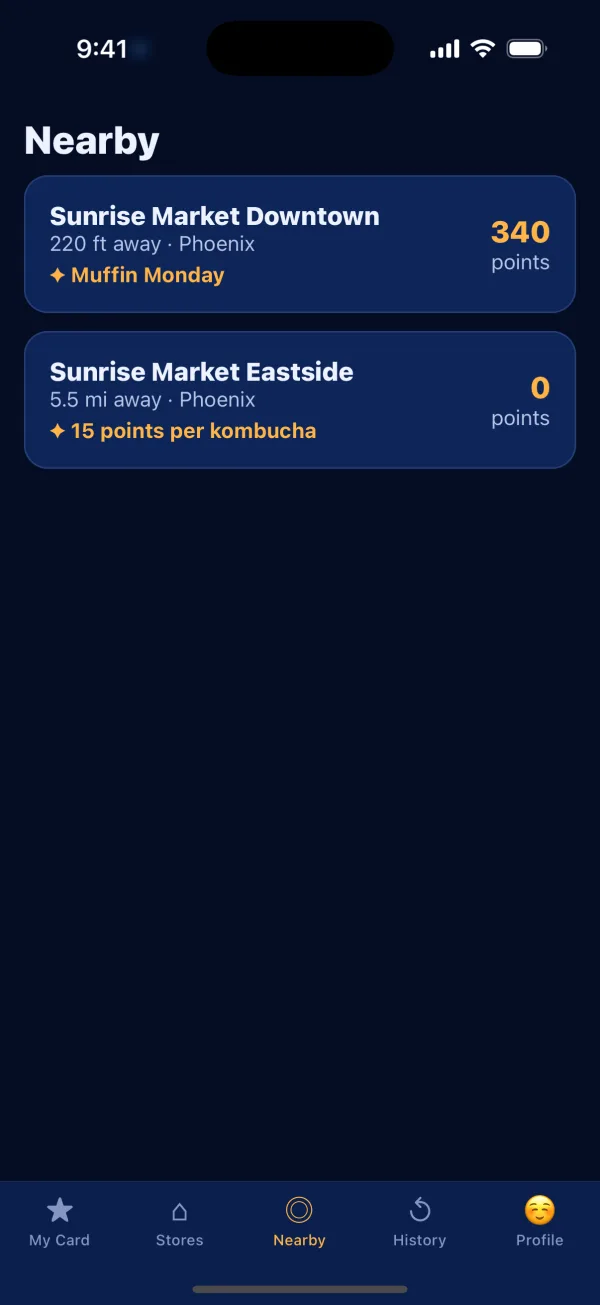
Step 5
Nearby lists StarQR stores around you with their best current deal and your points there. Allow location while using the app to see it.
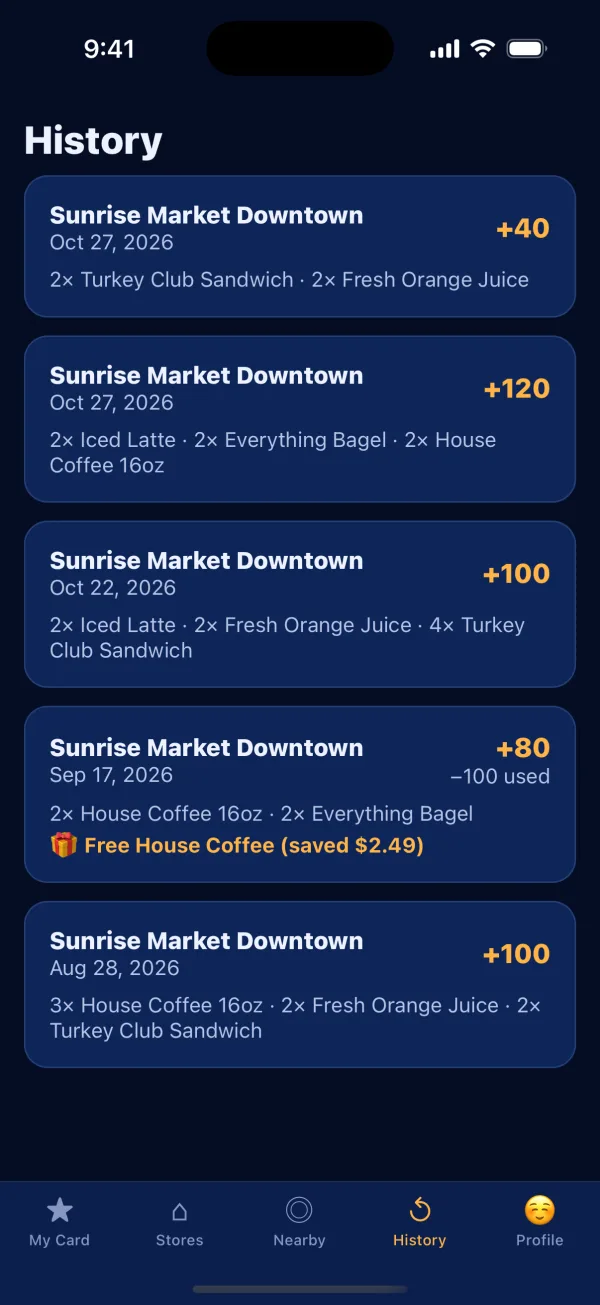
Step 6
History lists each visit with what you bought, the points you earned and any reward you used — including how much it saved you.
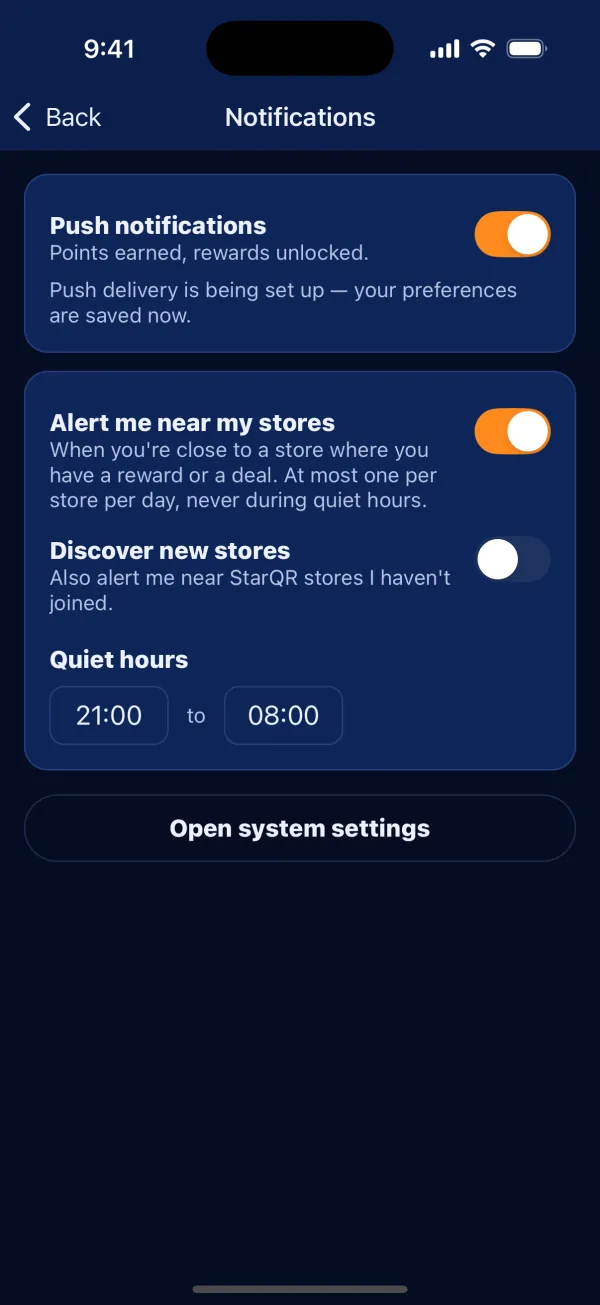
Step 7
Turn on nearby alerts in Profile → Notifications and we'll let you know when you walk past a store where a reward is ready. At most one alert per store per day, never during your quiet hours.
Download StarQR, show your star at checkout, and let the points roll in.